
Automated Tardy Workflows: Discipline Incidents, Minor Infractions, & Email Alerts Using Real-Time Alerts
One of the most common uses for Real-Time Alerts is automating tardy workflows. Schools can configure alerts to automatically create discipline incidents, minor infractions, or send email notifications when students reach specific tardy thresholds. This guide provides an overview of how to configure these workflows and explains the different rule options available.
To make setup easier, simpldiscipline includes three preconfigured tardy rule templates that can be used as a starting point:
- Tardy Threshold: Triggers an action when a student reaches a specified number of tardies. For example, create a discipline incident when a student receives 5 tardies.
- Tardy Threshold – Repeating Interval: Triggers an action at a specified interval. For example, if the interval is 3, the action will occur at 3, 6, 9, 12, and so on.
- Tardy Threshold & Every Occurrence After: Triggers an action when a student reaches a specified threshold and then again for every additional tardy. For example, if the threshold is 5, the action will occur at 5, 6, 7, 8, 9, 10, and every tardy thereafter.
- Tardy Threshold Between: Triggers an action at each tardy within the specified range. For example, if the threshold is set between 3 and 5 tardies, the action will trigger when the student reaches their 3rd, 4th, and 5th tardy.
To use one of these templates, Navigate to Real-Time Alerts in the reviewer area. select Add New School Alert, then click Create from Preset at the top of the page. A list of available preset rules will be displayed for you to choose from.
After creating a rule from a preset, review each configuration before enabling it. The presets are intended as a starting point and may need to be adjusted to match your requirements. For example, verify whether the rule should evaluate Daily Attendance or Meeting Attendance, update the tardy threshold if needed, and configure the desired action (discipline incident, minor infraction, or email notification).
The following explains the options of the student attendance count builder:
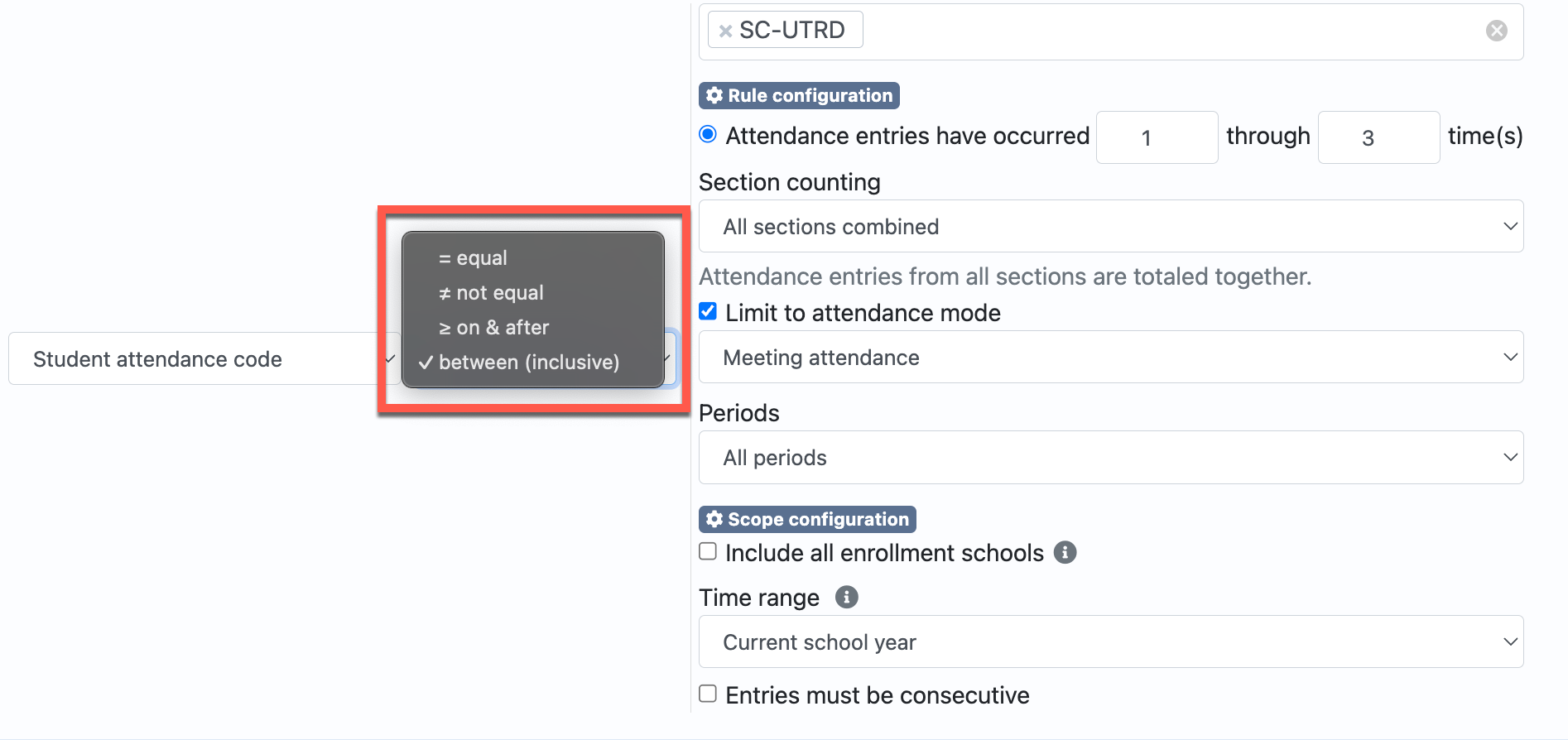
Understanding Alert Operators
When building a Real-Time Alert, the Operator determines when the rule will trigger based on the student’s current count.
- Equal To (=): The alert triggers only when the count exactly matches the configured threshold. Example: If the threshold is 5, the alert will trigger only on the student’s 5th tardy. It will not trigger again on the 6th, 7th, or later tardies. Note: If you want this alert to repeat at regular intervals, you can enable a Repeating Interval. For example, with a threshold of 5 and a repeating interval of 5, the alert will trigger on the 5th, 10th, 15th, 20th, and every fifth tardy thereafter.
- Not Equal To (≠): The alert is considered a match for every count except the configured threshold. Example: If the threshold is 5, the condition matches on 0, 1, 2, 3, 4, 6, 7, 8, and every other count except 5. Note: This operator is less commonly used for attendance workflows and is typically used when you want a rule to apply to all counts except one specific value.
- On & After (≥): The alert triggers when the count reaches the configured threshold and again on every occurrence after that. Example: If the threshold is 5, the alert will trigger on the student’s 5th, 6th, 7th, 8th, 9th, and every tardy thereafter. This operator is commonly used when you want the same action to continue occurring after a student reaches a specific milestone, such as creating a discipline incident or sending an email for every tardy after the 5th.
- Between: The alert triggers on each occurrence that falls within the configured range, including both the starting and ending values. Example: If the range is set between 3 and 5, the alert will trigger on the student’s 3rd, 4th, and 5th tardy. It will not trigger before the 3rd tardy or after the 5th tardy. This operator is useful when you want an action to occur only during a specific range of occurrences.
Attendance Code Selection
Select the attendance codes that should be counted by this alert. In most cases, you will select the attendance codes that represent unexcused tardies. Only the attendance codes selected here will be included when calculating the student’s tardy count for this rule.
Section Counting
Entries Must Be Consecutive
Do not enable this option for tardy alerts. Tardies are typically tracked as a cumulative total, not as consecutive occurrences. This setting is intended for workflows that require consecutive attendance events, such as 10 consecutive days absent (drop) alerts or other consecutive attendance rules.
Section Counting
Choose how the student’s tardies should be counted across their class schedule
- All Sections Combined: Counts tardies across all class sections. The alert triggers when the student’s combined total reaches the configured threshold. Example: If the threshold is 5, the alert will trigger when the student has 5 total tardies across all classes.
- Any Individual Section: Counts tardies separately for each class section. The alert triggers when the student reaches the configured threshold in any one class, regardless of their total across all classes. Example: If the threshold is 5, the alert will trigger when the student accumulates 5 tardies in a single class.
- Specific Section: Counts tardies only for the selected course section. The alert will trigger when the student reaches the configured threshold in that specific class. Example: If you select 1st Period English with a threshold of 5, the alert will trigger when the student receives 5 tardies in 1st Period English. Tardies from other classes will not be counted.
Limit to Attendance Mode
Choose which attendance mode the alert should evaluate. This should match the attendance method used by your school.
- Meeting Attendance: Typically used by middle and high schools. The alert counts tardies recorded for each individual class period (meeting). Each tardy in a different class counts as a separate occurrence toward the threshold. Example: If a student is marked tardy in 1st Period and 2nd Period on the same day, this counts as 2 tardies toward the configured threshold.
- Daily Attendance: Typically used by elementary schools. The alert counts tardies recorded in the student’s daily attendance record. Regardless of the number of classes the student attends, only the daily attendance record is evaluated. Example: If a student is marked tardy in their daily attendance record, it counts as 1 tardy toward the configured threshold.
Periods
Real-Time Alerts that use meeting attendance can be filtered by specific bell schedule periods imported from the SIS. This allows districts and schools to build attendance rules that only evaluate attendance codes from selected periods. Click here for more information on filtering by period.
Real-Time Alerts that use meeting attendance can be filtered by specific bell schedule periods imported from the SIS. This allows districts and schools to build attendance rules that only evaluate attendance codes from selected periods. Click here for more information on filtering by period.
Include All Enrollment Schools
Choose whether the alert should count attendance records from all schools in the district or only your current school.
- Enabled: The alert counts attendance records from all current and previous enrollment schools within the district that use simpldiscipline. Example: If a student transfers from Middle School A to Middle School B, the alert will include qualifying attendance records from both schools when calculating the student’s total. Likewise, if a student is enrolled at both their home school and a career center, attendance records from both enrollment locations will be included in the calculation.
- Disabled: The alert counts only the attendance records for the school(s) selected for the alert. Attendance records from other enrollment locations are ignored. Example: If a student transfers into your school, only the tardies recorded after they enrolled at your school will count toward the alert threshold.
Repeat This Workflow Every X Occurrences
Choose whether the workflow should repeat after the initial threshold is met. This option is ONLY available if the alert operator is set to "equal to".
- Enabled: After the alert triggers at the configured threshold, it will trigger again every X additional occurrences. Example: If the threshold is 5 and the repeating interval is 5, the workflow will trigger on the 5th, 10th, 15th, 20th, and every fifth occurrence thereafter.
- Disabled: The workflow will trigger only based on the selected operator and threshold. No repeating interval will be applied. Example: If the operator is Equal To with a threshold of 5, the workflow will trigger only on the 5th occurrence.
Time Range
Choose the time period over which the student’s attendance records should be counted.
- Current School Year: Counts qualifying attendance records for the entire current school year. The count resets at the beginning of the next school year. Example: If the threshold is 5, the alert will trigger when the student accumulates 5 qualifying tardies during the current school year.
- Current Semester: Counts qualifying attendance records for the current semester, based on the semester dates defined in your Student Information System (SIS). The count resets at the beginning of each new semester. Example: A student who had 4 tardies in the first semester will begin the second semester with a count of 0.
- Current Quarter: Counts qualifying attendance records for the current quarter, based on the quarter dates defined in your Student Information System (SIS). The count resets at the beginning of each new quarter. Example: A student who accumulated 3 tardies in Quarter 1 will begin Quarter 2 with a count of 0.
- Rolling Time Window: Counts qualifying attendance records that occur within a rolling number of days or weeks. Only occurrences that fall within the configured time window are included in the calculation. Example: If the rule is configured for 5 tardies within 30 days, the alert will trigger only if the student accumulates 5 qualifying tardies during any rolling 30-day period. As older attendance records fall outside the 30-day window, they are no longer included in the count.
Entries Must Be Consecutive
Do not enable this option for tardy alerts. Tardies are typically tracked as a cumulative total, not as consecutive occurrences. This setting is intended for workflows that require consecutive attendance events, such as 10 consecutive days absent (drop) alerts or other consecutive attendance rules.
Action Timing
Allows administrators to add a delay before the action is triggered. When a delay is used, simpldiscipline waits until the selected time and then rechecks the student's current data and the alert criteria before taking action. This can help prevent actions from being created based on attendance entries that were later corrected. More Info
Allows administrators to add a delay before the action is triggered. When a delay is used, simpldiscipline waits until the selected time and then rechecks the student's current data and the alert criteria before taking action. This can help prevent actions from being created based on attendance entries that were later corrected. More Info
Alert Actions
Once a student reaches the configured threshold, choose the action that simpldiscipline should automatically perform.
- Create a Discipline Incident: Automatically creates a discipline incident for the student when the alert criteria are met. The incident is created using the behavior, action, and workflow settings you configure The incident will appear in the Pending Incidents queue for review and approval. Once created, Pending Incident notification emails will be sent automatically based on each user’s notification preferences.
- Create a Minor Infraction: Automatically creates a minor infraction when the alert criteria are met. You can also configure the rule to automatically assign a minor consequence, such as lunch detention, after-school detention, or another district-defined action. Recommended: If you automatically assign a consequence, we strongly recommend also enabling Student Calendar Notification Emails. Otherwise, the student may not know that a consequence has been assigned until a staff member informs them. You may also want to enable Staff Email Notifications (below). This allows the assigned staff member to review the automatically created minor infraction and, if appropriate, generate and send a parent and/or student notification letter directly from the minor infraction.
- Staff Email Notification: Automatically sends an email notification to the selected staff members when the alert is triggered.Staff Email Notifications can also be used alongside automated discipline incidents or minor infractions to ensure selected staff are aware that the workflow has been triggered.
- Student Email Notification: Automatically sends an email notification to the selected student's school email address when the alert is triggered.
- Parent Email Notification: Automatically sends an email notification to the selected parents email address when the alert is triggered. This functionality must be activated by a district super admin before it is available to schools.
DataImage7.png
DataImage74.png
DataImage44.png
DataImage48.png
| Files | ||
|---|---|---|
|
|
DataImage7.png
9 KB
|
|
|
|
DataImage74.png
47 KB
|
|
|
|
DataImage44.png
205 KB
|
|
|
|
DataImage48.png
187 KB
|