
How to Delegate Administrative Settings to School-Level Users (Calendars, School Info, Visibility, and Users)
District administrators can choose to delegate certain administrative settings to school-level users with the Reviewer role. This allows schools to manage specific configuration settings for their own location while maintaining overall district control.
Delegating these settings can help reduce the workload on district administrators by allowing schools to manage their own calendars, school information, visibility settings, and user permissions.
To configure which settings can be delegated to schools:
1.Navigate to Admin Area
2.Select System Settings.from the left-side navigation menu.
3.Click Admin Delegated Settings.
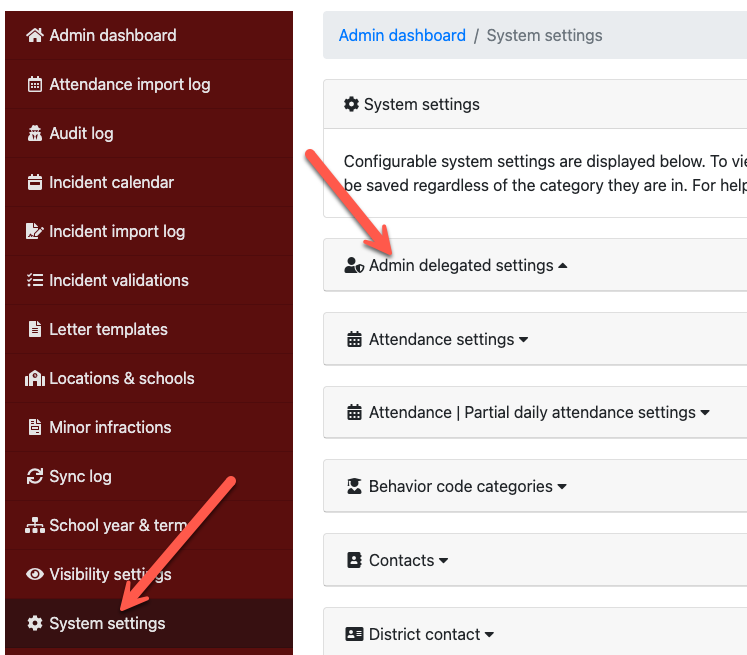
This page allows district administrators to determine which configuration areas school-level reviewers can access and manage.
The first section contains view-only options.
Enabling these settings allows users with the Reviewer role, including Reviewer – Read Only and Reviewer – Read Only + Truancy Center, to view the page. Access is limited to the locations associated with their role.
Enabling these settings allows users with the Reviewer role, including Reviewer – Read Only and Reviewer – Read Only + Truancy Center, to view the page. Access is limited to the locations associated with their role.
These users are not able to make changes on the page and will only have view-only access to the information displayed.

The second section contains edit access settings.
When a toggle is off, users with the Reviewer role can view the information on these pages but will have read-only access and cannot make changes. When a toggle is enabled, users with the Reviewer role can edit these pages. Access is restricted to the locations associated with their elevated role.
Users with the Reviewer (Read Only) and Reviewer (Read Only + Truancy Center) roles will always have view-only access and cannot edit these pages, regardless of the toggle setting.
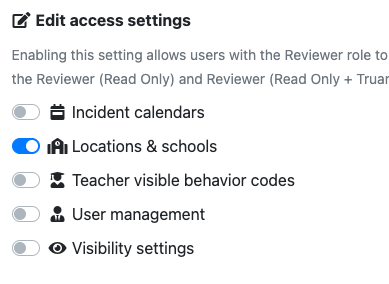
Incident Calendar:
Allows the school to manage actions and mappings on their incident calendar. Schools can rename actions to match their local terminology (for example, changing “ISS” to “Warrior Room”). Schools can also configure which events should take attendance and customize the colors used for calendar items.
Locations & Schools:
Allows the school to update key school information such as the school address, phone number, principal name, assistant principal name, and attendance contact information. This information is automatically pulled into letter variables and used throughout the system in letters and reports.
Teacher visible behavior codes:
Allows schools to configure which behavior codes are available for teachers to choose when submitting discipline incidents.
Visibility Settings:
Allows the school to configure teacher visibility settings. For example, schools can choose whether teachers are able to see minor infractions submitted by other teachers for students they teach.
User Management:
Allows the school to manage users assigned to their building, including updating roles and permissions for users up to the Reviewer level. School-level users cannot manage users with higher-level administrative roles.
Defaults
By default, Letter Templates is the only view-only setting enabled. We strongly recommend keeping this enabled so schools can see the letter templates available for their location. The only edit access setting enabled by default is Locations & Schools, which we also strongly recommend keeping enabled so schools can maintain their own school-level information.
All other settings are disabled by default but can be enabled at the district’s discretion if they would like to allow schools to manage additional configuration areas.
DataImage91.png
DataImage34.png
DataImage16.png
DataImage72.png
| Files | ||
|---|---|---|
|
|
DataImage91.png
102 KB
|
|
|
|
DataImage34.png
23 KB
|
|
|
|
DataImage16.png
25 KB
|
|
|
|
DataImage72.png
34 KB
|