
Configuring Calendar Event Status (Attendance)
Schools can use the incident calendar in simpldiscipline to track whether assigned actions were actually served.
With calendar event status, staff can mark each student’s calendar event as Complete, Incomplete, or Partially complete directly from the calendar.
To learn more about calendar event status in general, click here.
Calendar event status must be configured by a Super Admin user, typically your district-level contact for simpldiscipline.
By default, all districts are configured with these three event status options:
•Complete (will stroke through a student name)
•Incomplete
•Partially complete
If you would like to use different status options, we recommend emailing help@simpledu.com for guidance and setup.
Turning on calendar attendance settings
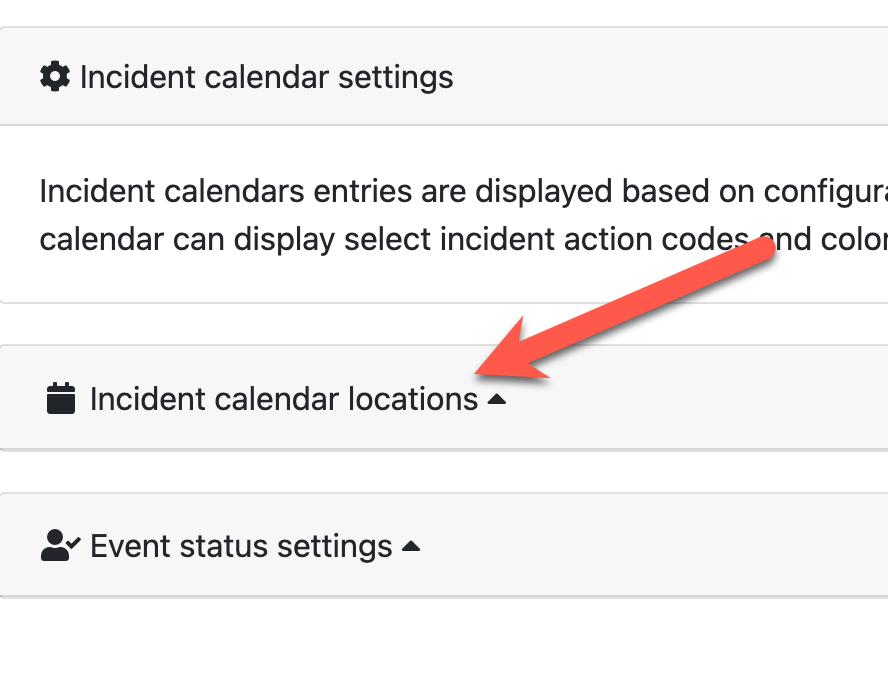
To configure calendar attendance settings:
1.Go to the red Admin area in simpldiscipline.
2.In the left navigation menu, select Incident calendars.
3. On the Incident calendars page, you will click "Incident calendar locations"
For each school, you can decide which actions should use calendar attendance and which status options should be available.
For each school:
1.Find the school in the list of incident calendar locations.
2.For each action where you want to track attendance, add the event status options you want staff to see (for example, Complete, Incomplete, Partially complete).
3.Leave event status blank for actions where attendance tracking is not needed.
This allows you to:
•Require attendance tracking only for relevant actions
•Customize which event status options appear for each action
For example, you may not want to take attendance for Out of School Suspension, since the student will not be on campus, but you do want to track attendance for In School Suspension.
When you finish configuring all school calendars, scroll to the bottom of the page and click Save settings.
Once your calendars are configured, the simpldiscipline team will need to set a go live date for calendar attendance.
Important details:
•The go live date turns on calendar attendance starting on that date, moving forward.
•Any actions assigned before the go live date will not be configured for calendar attendance and will not count toward your attendance metrics.
•The go live date is district-wide, not per school.
When you are ready:
1.Decide on the date you want calendar attendance to begin (for example, 1/6/2026).
2.Email help@simpledu.com and request:
“Please set our calendar go-live date to X/X/XXXX.”
DataImage14.png
DataImage72.png
DataImage36.png
DataImage67.png
| Files | ||
|---|---|---|
|
|
DataImage14.png
137 KB
|
|
|
|
DataImage72.png
73 KB
|
|
|
|
DataImage36.png
85 KB
|
|
|
|
DataImage67.png
96 KB
|